
Updated: October 9, 2026
Disclosure: GearSift is reader-supported. Some links on GearSift may be affiliate links that earn us a commission at no extra cost to you. This article currently contains none. Learn more.
Want your own Wi-Fi router or mesh system on Starlink? Depending on your kit, you either turn on bypass mode or plug your router straight into the power supply. This guide follows Starlink’s own Help Center articles, kit by kit.
How we wrote this: research-based, from Starlink’s Help Center and router makers’ spec pages (cited below, checked October 9, 2026, ET). We have not set this up ourselves. Starlink changes its hardware and app often, so check the linked articles before you start.
What bypass mode does
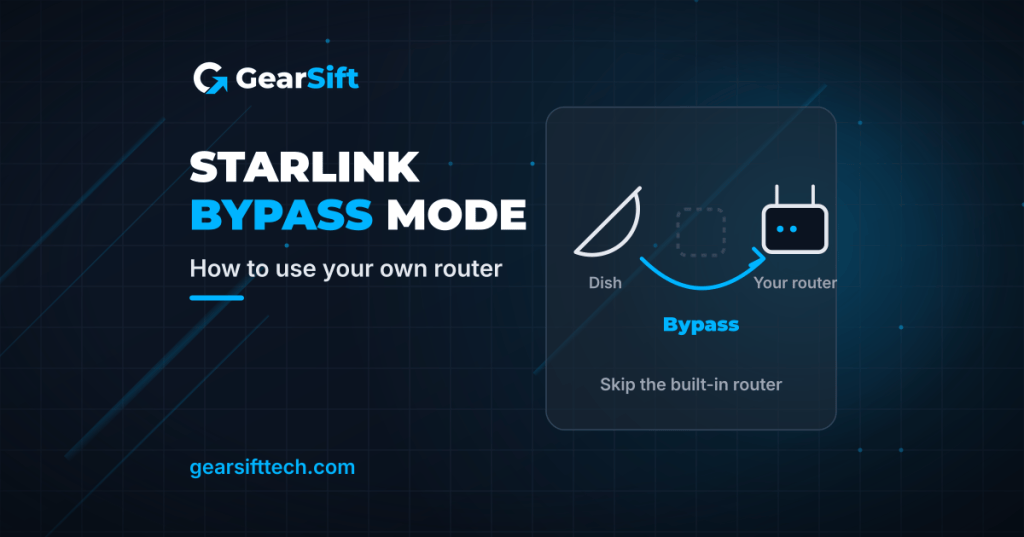
Starlink says bypass mode turns off the Starlink router so you can connect a third-party router directly. With it on, the Starlink router’s Wi-Fi is “completely disabled” [1]. You enable it in the Starlink app under Settings, and you turn it off with a factory reset [1].
Starlink also notes it “cannot guarantee performance or compatibility with third-party networking equipment”, and some Starlink app features “may not work as expected” with a third-party router [3].
Do you need bypass mode? It depends on your kit
| Your Starlink kit / router | What Starlink says to do |
|---|---|
| Router 3 | Enable bypass mode in the app, then plug your router into one of the Ethernet ports on the back of the Router 3 [1] |
| Starlink Standard | Bypass mode is required when you want your router to control Wi-Fi [2]. See the note below on how Starlink describes the connection |
| Router Mini | App > Settings > Bypass Mode > Enable [1] |
| Standard Actuated (Gen 2 router) | Needs the Starlink Ethernet Adapter (sold separately on the Starlink Shop), then bypass mode. Bypass is required even with the adapter [2][3][4] |
| Starlink Mini | Use the USB-C to Ethernet adapter to your router’s WAN port [2]. Starlink recommends the official Starlink Mini Ethernet cable to keep the Mini weatherproof [1] |
| Performance (Gen 1), Performance (Gen 2), Enterprise | Usually no bypass needed: connect your router to the power supply’s Ethernet [1][2]. Performance (Gen 3): use the provided Ethernet cable; if the app shows “Starlink unreachable”, add a static route on your router [2] |
| Gen 1 router | Replace the Gen 1 router with your third-party router instead of bypassing [1] |
Starlink’s articles differ on the Standard kit. One says Starlink Standard has “Built-in Ethernet on the power supply” and to connect from there to your router’s WAN port [2]. The bypass article tells Router 3 owners to plug into the router’s own Ethernet ports [1]. Check which ports your kit actually has before buying cables.
Step by step (Router 3 example)
- Turn on bypass mode in the Starlink app (Settings) [1].
- Connect your router’s WAN/Internet port to one of the Router 3’s Ethernet ports [1].
- Look for the violet light. It shows the router is in bypass mode and turns off after one hour [1].
- Set your router’s WAN to DHCP so it gets an address from Starlink automatically [2].
- Optional health checks: if your router monitors the connection, Starlink suggests pinging a public IP (8.8.8.8 or 1.1.1.1) every 10 seconds and marking it down after 5 failures. Starlink’s DNS servers don’t respond to ping [2].
Undoing it: you need a factory reset. Factory reset from the Starlink app isn’t available while the router is in bypass mode [5]. On Router 3, the reset button is under the LAN port cap on the back; press it briefly with a paper clip [5].
What you gain and what you don’t
- Port forwarding: the Starlink router doesn’t support it. Starlink says you need a third-party router that does and a Public IP on your Starlink service [6].
- Public IP: only on the Local Priority and Global Priority plans [7]. The default IPv4 setup uses CGNAT, which “does not allow inbound traffic” [8].
- IPv6: Starlink supports native IPv6 on all routers, kits and plans. Each Starlink gets a delegated /56 IPv6 prefix via DHCPv6-PD [8].
- Blocked ports: outbound TCP/25 (SMTP) and TCP/445 (SMB) are blocked for all customers [8].
- What the Starlink router can’t do anyway: no admin portal, no MAC filters, no port forwarding; settings are in the app only [9].
What to look for in a router for Starlink (our checklist)
This is our checklist, based on the Starlink articles above, not a Starlink recommendation:
- DHCP on the WAN port (Starlink asks for it [2]).
- IPv6 with DHCPv6-PD if you want IPv6 on your devices (Starlink hands out a /56 prefix that way [8]).
- Port forwarding, only if you’ll pay for a plan with a Public IP [6][7].
- Enough wired ports. Router 3 has two LAN ports; Starlink suggests adding an Ethernet switch if you need more [4].
Two routers worth knowing about
TP-Link Archer BE230 (single router)
- Wi-Fi 7, dual-band BE3600: 2882 Mbps (5 GHz) + 688 Mbps (2.4 GHz) [10].
- Ports: 1 × 2.5 Gbps WAN, 1 × 2.5 Gbps LAN, 3 × 1 Gbps LAN, 1 × USB 3.0 [10].
- Spec list includes Dynamic IP WAN, IPv6 and port forwarding [10]. EasyMesh-compatible [10].
- Trade-off: dual-band only (5 GHz + 2.4 GHz; no 6 GHz band) [10].
See the TP-Link Archer BE230 on TP-Link
Amazon eero 7 (mesh)
- eero says it’s “ideal for internet plans up to 2.5 Gbps”, with two auto-sensing 2.5 GbE ports (the page doesn’t label either as a dedicated WAN port) and wireless speeds up to 1.8 Gbps [11].
- 2,000 sq ft per router and 120+ devices, per eero [11].
- Trade-off: two Ethernet ports per unit [11]; use a switch for more wired devices.
More whole-home options: (In review: Best Wi-Fi 7 mesh systems for 1–2.5 Gig internet. Link once published.)
FAQ
Can I keep using Starlink mesh nodes in bypass mode?
Starlink’s bypass article doesn’t cover that, so we won’t guess. For more coverage on Starlink without your own router, Starlink recommends extra Starlink routers as mesh (Mini owners) [12].
Does the Starlink Mini need a separate router?
No. Starlink says the Mini has an integrated Wi-Fi router [12]. Starlink’s bypass and Ethernet-adapter instructions are about connecting a third-party router [1][2].
How do I add more wired devices?
Plug an Ethernet switch into your router. (Planned: Best 2.5GbE switches for a home network.)
Real gear for a better everyday.
Sources (all checked October 9, 2026, ET)
- Starlink Help Center, “What is bypass mode?”: https://www.starlink.com/us/support/article/a0fe8d51-32f7-d2b9-d74a-801e31ad9f6a
- Starlink Help Center, “Can I use my own router with Starlink?”: https://www.starlink.com/us/support/article/0b372c01-c692-8920-8396-ffb7f429aab1
- Starlink Help Center, “Can I add a third-party router or mesh system?”: https://www.starlink.com/us/support/article/a206a55c-0597-2d06-1408-dea7dcf24221
- Starlink Help Center, “Does the WiFi router have any ethernet (LAN) ports to connect wired devices?” (Router 3 and Gen 2 sections): https://www.starlink.com/us/support/article/197cc36c-48ee-45f4-0574-aad686984317
- Starlink Help Center, “How do I factory reset my router?”: https://www.starlink.com/us/support/article/d68ed178-4d54-b486-b7d8-2a6273917632
- Starlink Help Center, “Can I port forward with the Starlink router?”: https://www.starlink.com/us/support/article/e3e6bb65-2bbc-1c8a-0c42-74b4776a64f8
- Starlink Help Center, “How do I set my IP address to a public IP?”: https://www.starlink.com/us/support/article/13f0056c-6f6d-5a55-623c-fe94ad9947c5
- Starlink Help Center, “What IP address does Starlink provide?”: https://www.starlink.com/us/support/article/1192f3ef-2a17-31d9-261a-a59d215629f4
- Starlink Help Center, “Does Starlink have a WiFi router administrator portal?”: https://www.starlink.com/us/support/article/f9a1d602-9204-e70c-a780-f2619d99f9c7
- TP-Link, Archer BE230 product page and specifications: https://www.tp-link.com/us/home-networking/wifi-router/archer-be230/
- eero, eero 7 shop page: https://eero.com/shop/eero-7
- Starlink Help Center, “Does Starlink Mini have a separate router?”: https://www.starlink.com/us/support/article/59a01a40-5538-8205-1f58-a7beebaad6d4


Leave a Reply